Showing posts with label linux. Show all posts

07 October, 2015

The Volatile Security of Volatile Memory

I forgot about yesterday...
It is the black box in every system, even our brain.  Volatile memory goes by many names, working memory, temporary memory, RAM, even just memory.  Whatever your preference, when you mention it you're most likely referring to the area of a system in which data is stored for a relatively short period of time until it is used and then discarded (or transferred to persistent storage).  One cannot possibly imagine a system without some form of memory; even if it is the same are where it is stored permanently, there is still some area used for temporary calculations.

Among the major differences between RAM and persistent storage is that RAM typically contains data about the processes that are currently in execution along with the data we are working on right now and will be discarded soon (yes I hear your screams, persistent storage does that too, but it also has data that we haven't looked at for months).  Along with this fact, hard disks enjoy the possibility of being totally encrypted.  They cannot be read unless the key is provided.  This is not possible in RAM, primarily because the CPU cannot work with encrypted commands.

I do not mean that the CPU is not able to process encrypted data and convert it to plain text, what I am referring to is the inability of the CPU to understand encrypted commands (opcodes) or work on the encrypted data as data rather than a decryption payload.  Let's say we have the binary value of 13 = 1101 and we want to add that to 5=101.  Our simple XOR encrypter will give us the values 0111 and 000 for the keys 1010 and 101 respectively.  Adding 0111 and 000 does not give the actual result for 18=10010.  The values have to be in plain text before actual processing.  XOR is simple and integral to CPUs so it is the simplest operation for it to decrypt the values.  Once decrypted it is then possible to add the values.

But here is the problem - where is the key stored?  Of course, working memory.  What is the point of encrypting the data in RAM when the key is in the same RAM?  What is the point of encrypting RAM after all?

Boom!


We encrypt disks because they can be removed or because they are portable, yet still contain data, unlike RAM which hold it until we turn off the system (or a bit longer if you're into memory freezing and forensics).  So, we think, RAM is inaccessible to would-be hackers.  Or so we used to think.

Recent research by various people and organisations (Sophos, Brian Krebs, Volatility Labs, among others) have identified a simple and small malware that simply looks up processes, maps their memory regions, copy paste and onto the attackers server for them to enjoy.  And by the way, the kind of data was not you're ex's text messages, but the PIN to you credit card, so it's a bit more expensive I would say.

Use only for great dinners.

I did my own research (and eventually BSc. thesis) on this subject, and it is quite scary knowing that the very heart of your system may be so easily compromised.  What's worse is that when you enter your PIN into any other system on which you have no control...God knows what's running on them and where your data goes.  Anti viruses barely have an idea how to capture such an attack, and neither do firewalls, internet protection or whatever you have.  If they did, they would block your debugger too, because that's how it works - like a debugger.  It's like a kitchen knife used for a murder - you cannot ban knives.


Here's a short and sweet step-by-step on how you can scrape your memory.  It's not intended to attack anyone, and it wouldn't be easy any way.  It's successful only if your target cannot protect their networks and you manage to get in.  The sample was done on Linux;  Windows would be totally different but still very possible (the Target attacks were in fact on Windows).  So here it goes:

A dummy little program was written in C.  All it did was store a username and password (entered using getpass() for increased security) along with a series of credit card numbers that are "swiped" into the system.
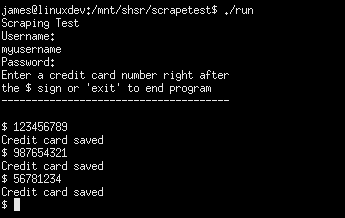
insertion.png
Swiping cards
We then find the PID of this running process just by ps aux | grep scrape (the program is named scrape, but it may be something like POSSwiper for example)

get pid.png
Getting the PID

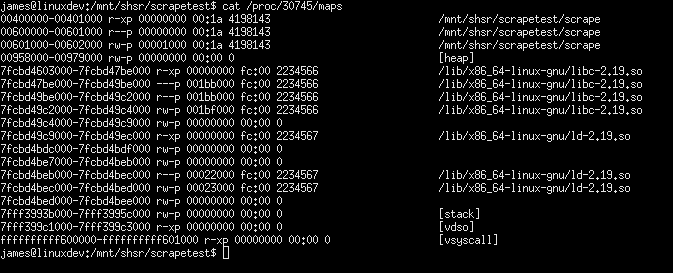
Now we can get all the memory regions and maps used by our processes.  The /proc directory gives us a hand there.
dump maps.png
/proccing to analyse the memory

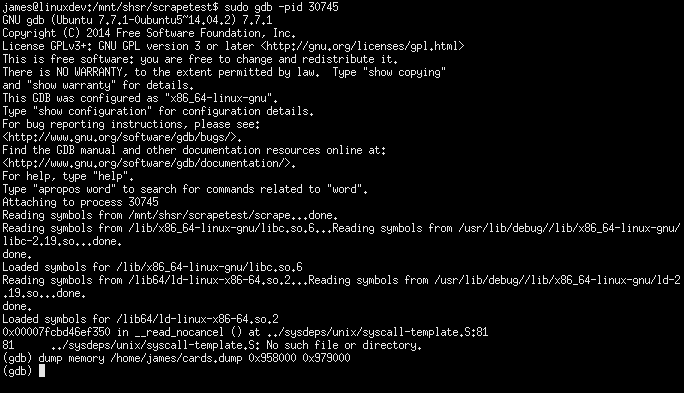
We are interested in the heap space of our program which shows up nicely in the fourth line;  ranging from address 009580000 to 00979000 (both hex).  Next thing we do is fire up the actual scraper (which is, in our case, a kitchen knife.  A legitimate gdb debugger).
gdb dump.png
Dumping memory in just one line!

GDB shows a bunch of text; we're only interested in how we started it (gdb -pid <PID>) and how we stole the memory (dump memory <to where> 0x958000 0x979000)  As you can see, using the exact heap space memory range we got from /proc.  The memory will be dumped to the file we choose.  Of course, this requires administrator rights, but as one might expect, tens and hundreds of POS devices will most likely share the same password, and will probably have the default one too (such a typical case of a security breach - I found the password to my ISP's router on a public forum...).

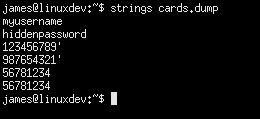
Now, onto the next step - the analysis, if you call it that.  Data dumped into the file is from RAM, so as expected it is binary.  Linux simplifies this analysis by providing another tools - strings.  All it does is see what's in a file and spit our all the strings it could find.  That's it, so we pass the dump to it and we get a nice list of string, including the password (you didn't see it in the first screenshot because of getpass()) and all the numbers and everything.
acquire strings.png
The gold mine

That is all.  Now go and whitelist the list of processes on your system, before someone gets to scrape the memory off it.

04 October, 2015

Linux, Virtualisation and some Performance monitoring

P.S.  This post is more of a noob's voyage towards better virtualisation on Linux than some professional guidance.
 
A few days ago I was facing an issue on my Linux machine where performance suddenly dropped to near unusability while the hard disk LED was on overdrive.  My first thought was that there may be some excessive swapping going on.  The problem was, though, how to identify what was causing this rather than what was happening.

Cheesy image for computers!


I could have guessed what the reason was since I had just turned on maybe the 10th VM on VMWare workstation.  Despite this fact it was not immediately obvious which VM might be swapping rapidly or why it was doing so (there shouldn't be much memory usage during startup).

As yet, I haven't totally found out what it was but messing with some config files did the trick up to a certain point.  First of all I limited VMWare to 16GB or RAM (out of 32) and configured it to swap as much as possible.  I was led to believe that VMWare's and the kernel's swapping mechanisms weren't on the same terms, which ended up with me bashing (excuse the pun) the whole system.  A few miraculous key presses took (Ctrl Alt F1) me to the terminal from where I could, at least, get a list of CPU heavy processes and kill them.  Unfortunately it was not just vmware-vmx processes but also kswapd0 - an integral part of the system which won't easily allow you to kill -9 it.  So basically this was the first indication of a memory issue.

After some googling I reconfigured swapping etc.  but I wasn't able to replicate the issue and quite frankly I really did not want to spend 15 everytime to recover my system.  So the process of finding a solution took days - not continuously trying to fix it of course.  the best solution I could come up with was buying a small 50GB SSD and using it all for swapping.  Apart from that I also set the vm.swappiness to a nice 100.  The memory configuration on VMWare was set to swap as much as possible too.  My idea was to allow everything to swap as much as they can since the disk was much faster now.  Apart from that, I'd have as little occupied memory as possible.

I thought I'd start seeing a lot of fast swapping this time, so in case I got into the same situation again, it would be much easier to recover.  In fact it did happen once again, but this time the system was under much more stress, so the extra swapping did help.  This time I had a little script prepared so the 10 second long keypresses would not waste much of my time when typing in all the arguments.  I used the following script to see what was hogging the CPU, network, disks - almost every possible bottleneck I could think of:

#!/bin/bash
dstat -cdnpmgs --top-bio --top-cpu --top-mem

Short and sweet, just calling dstat with canned arguments!  Calling jtop is a lot shorter than all those arguments, that's for sure.  Again, the result was swapping a swapping issue. 

dstat however showed me something I was not really expecting.  RAM usage wasn't really that bad, actually, just by looking at numbers it was great - less than 50% usage.  However there were some more numbers and at that point I was not sure if I was actually using ~40% or 97%.

Reading up on Linux memory management taught me another thing.  Linux is actually making use of much more RAM, however the bulk of it is caching.  This cache is cleared when more memory usage is required by processes.  Effectively I would see that there is less than 2-3% free RAM but that is not the correct way to read it.  So there is some silver lining to this issue - I got to learn quite a lot more on memory management on Linux.

Following this result I started looking for a virtualisation solution that did not try to re-implement what the kernel was built to do.  Not that I have anything in particular against VMWare or how it is implemented, but I was quite sure that the problem was originating from it.  After a bit more educated reading on virtualisation, and a bit more courage to move out my (then) GUI-based comfort zone (few weeks before the said case I was mostly a Windows user..), I came to the conclusion that the Linux-based systems were potentially much better.


The logo is cool though
Here I introduced myself to KVM and Xen.  Both appear to be more ingrained into the system and had potentially better memory management.  I read up on some general performance and history of both systems and KVM appeared to have the upper hand.  Being a more integral part of the Linux eco-system (and marginally faster https://major.io/2014/06/22/performance-benchmarks-kvm-vs-xen/) I opted to base my future VMs on KVM.  I'm happy to say that I've never looked back since then and the impressive performance I enjoy on KVM is (on my system) unparalleled.

I'll let the kernel manage my memory
There is no particular conclusion here, except that maybe you should be familiar with your options before making decisions.  I've got nothing against VMWare, as I said, I simply found something that works better for me.  Management tools are far better on the VMWare side, but I'm satisfied with what VM Manager offers in terms of management and monitoring.  Oh, you may also make use of the "script" I have.  It's convenient when you need to see some performance details while not keying in some 5 arguments.  I might write something on KVM next time, since it allows one to define many more options rather than a few clicks and done.
